
Gallery
Galleries collect multiple images into a balanced grid, letting readers browse quickly without losing their place. Consistent sizing, spacing, and captions keep the layout calm while thumbnails invite deeper exploration through links or lightboxes.
Use galleries for visual stories, product shots, or documentation highlights. Pair each image with meaningful alt text and optional captions, and choose the right fit, size, and ratio settings so every thumbnail feels intentional across breakpoints.
Regular
Default galleries display images in a uniform grid with optional links and captions. Use them when you need quick scanning—portfolio thumbnails, release previews, or documentation screenshots—and keep captions concise so they don’t crowd the visuals.
-
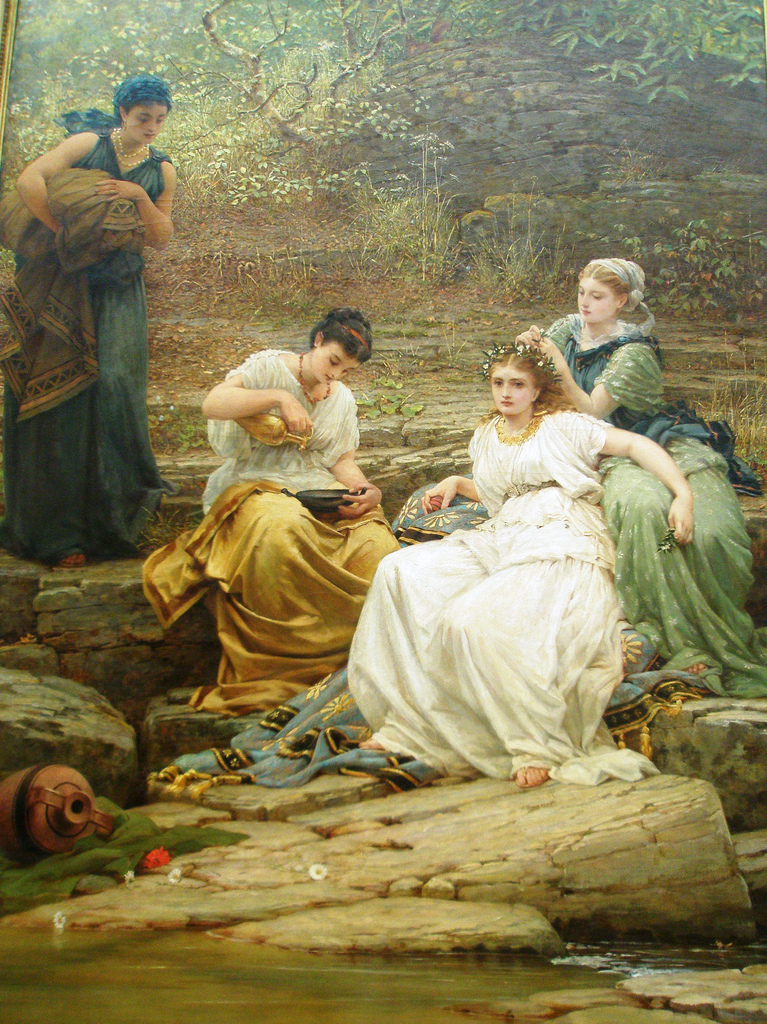
Possimus nihil, voluptatum illum consequatur -
,_1861.jpg)
-
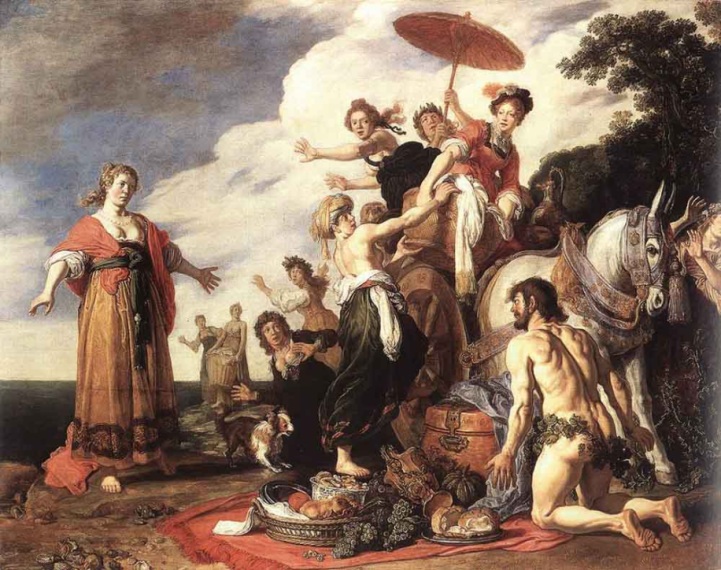
-

-
-
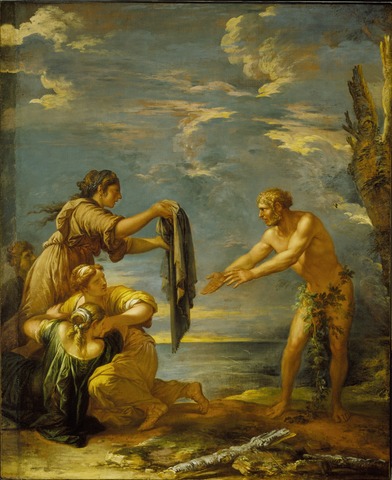
-

-

-
-
-
-

,_1861.jpg)
Accessibility: provide descriptive alt text for every thumbnail, use <figcaption> when context matters, and review the Images guidance for more on responsive behavior and media ethics.
<ul class="gallery">
  <li>
    <a href="...">
      <img src="..." alt="...">
    </a>
  </li>
  <li>
    <a href="...">
      <img src="..." alt="...">
    </a>
  </li>
  <!-- Link not mandatory -->
  <li>
    <img src="..." alt="...">
  </li>
</ul>
Fit
Fit options control how each image fills its tile. Default stretch preserves layout density; image-cover crops gently to fill the frame; image-contain keeps the whole asset visible with letterboxing; image-original respects native dimensions.
Choose deliberately: pick cover for immersive grids where cropping is acceptable, contain for UI captures or diagrams, and original for artwork where scale fidelity matters. Stay consistent within a gallery to avoid visual jitter.
<ul class="gallery"></ul> <!-- Stretch to fill (default) -->

<ul class="gallery image-cover"></ul>
<ul class="gallery">
  <li>
    <img src="..." alt="..." class="image-cover">
  </li>
</ul>

<ul class="gallery image-contain"></ul>
<ul class="gallery">
  <li>
    <img src="..." alt="..." class="image-contain">
  </li>
</ul>

<ul class="gallery image-original"></ul>
<ul class="gallery">
  <li>
    <img src="..." alt="..." class="image-original">
  </li>
</ul>
Sizes
Gallery sizes tune how many columns appear by default. Use mini or small for tight sidebars, medium or large for content areas, and the upper sizes (big through massive) for bold, immersive sections. All sizes stay responsive—choose based on emphasis and available space.
Balance density: lighter grids (mini/small) keep text readable nearby, while larger tiles suit hero strips or case study highlights. Avoid mixing sizes in one gallery unless you’re intentionally creating a mosaic; consistency keeps scanning predictable.
<ul class="gallery mini"></ul>
<ul class="gallery small"></ul>
<ul class="gallery medium"></ul>
<ul class="gallery large"></ul>
<ul class="gallery big"></ul>
<ul class="gallery huge"></ul>
<ul class="gallery massive"></ul>
<ul class="gallery enormous"></ul>
<ul class="gallery giant"></ul>
Ratio
Aspect ratios lock thumbnails to predictable proportions, preventing layout jumps between portraits and landscapes. Choose a ratio that matches your source material—3:4 or 9:16 for verticals, 4:3 or 16:9 for horizontals, golden ratios for editorial flair.
Match the story: align the ratio to the dominant orientation of your images to minimize cropping, and stay consistent inside a single gallery. Mixing wildly different ratios can feel chaotic; reserve it for intentional, collage-style layouts.
<ul class="gallery ratio-3by4"></ul>
<ul class="gallery ratio-9by16"></ul>
<ul class="gallery ratio-golden-portrait"></ul>
<ul class="gallery ratio-4by3"></ul>
<ul class="gallery ratio-16by9"></ul>
<ul class="gallery ratio-golden-landscape"></ul>
Position
Focal positioning lets you steer which part of an image stays visible when it’s cropped. Apply positional classes to the gallery or individual images so key subjects remain in frame—handy for portraits, product shots, or artwork with important edges.
-
X: 0%, Y: 0% -
X: 50%, Y: 0% -
X: 100%, Y: 0%
-
X: 0%, Y: 50% -
X: 0%, Y: 50% -
X: 0%, Y: 100%
Preserve intent: choose positions that keep faces, text, or key objects centered. For mixed content, set positions per image rather than globally; documenting these choices helps future editors avoid accidental crops.
<!-- Position classes: left-top, left-center, left-bottom, center-top, center-center, center-bottom, right-top, right-center, right-bottom -->

<ul class="gallery left-top"></ul>

<!-- You can also set position per image -->

<ul class="gallery">
  <li>
    <img src="..." alt="..." class="left-top">
  </li>
</ul>
Slideshow
Slideshows spotlight one image at a time while keeping the rest a tap away. They work well for step-by-step walkthroughs, featured collections, or highlighting key shots without overwhelming the page with a full grid.
Guide the tour: keep radio controls reachable with the keyboard, label slides for screen readers, and prefer slideshows when you need focus over breadth. If quick scanning is the goal, stick with a grid instead.
<ul class="gallery slideshow">
  <li>
    <input type="radio" name="..." id="...">
    <label for="..."></label>
    <a href="...">
      <img src="..." alt="...">
    </a>
  </li>
  <li>
    <input type="radio" name="..." id="...">
    <label for="..."></label>
    <a href="...">
      <img src="..." alt="...">
    </a>
  </li>
  <li>
    <input type="radio" name="..." id="...">
    <label for="..."></label>
    <a href="...">
      <img src="..." alt="...">
    </a>
  </li>
</ul>
Slideshow with thumbnails
Thumbnail navigation adds a strip of miniatures to the slideshow, making it easy to jump between highlights. Use this when viewers need to compare shots or skip ahead; keep thumbnails readable by matching their fit/ratio to the main frame.
Stay aligned: keep thumbnails in the same order and aspect as the primary images, ensure labels and controls are focusable, and reserve this layout for galleries with limited images to prevent overwhelming navigation.
<ul class="gallery slideshow with-thumbnails">...</ul>